Help Pages - Java Settings
Java Settings
Java settings
In this page you can set the global Java settings.
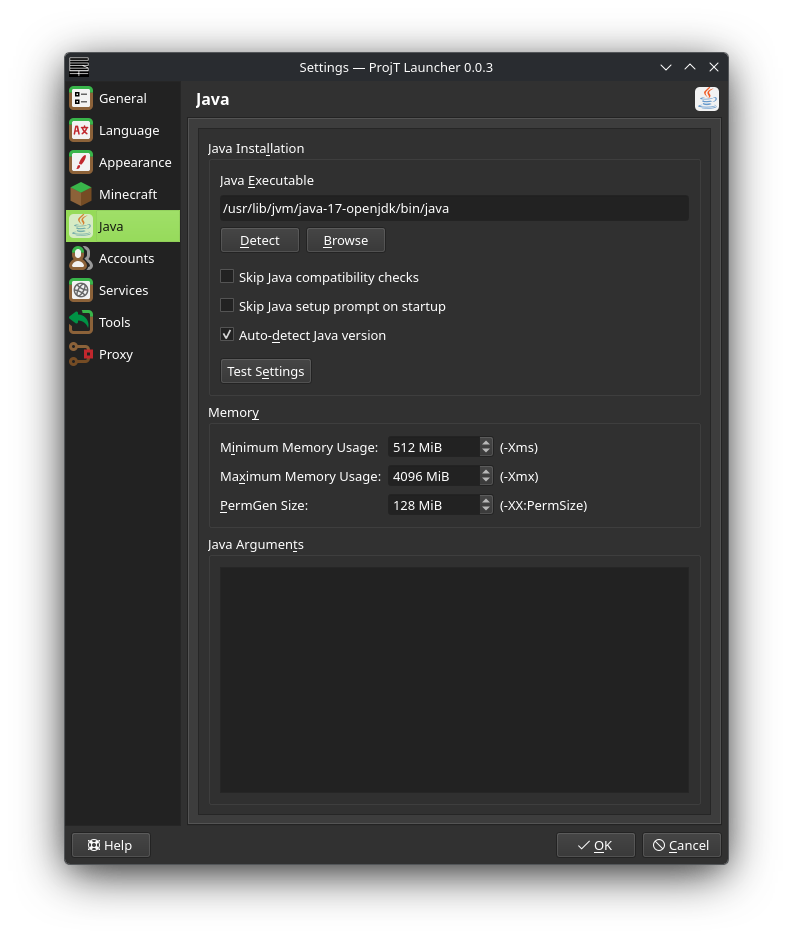
Memory
Java memory settings. NOTE: MORE RAM ALLOCATED DOESN'T MEAN BETTER PERFORMANCE! In fact, in most use cases (except you're playing big modpacks) 4GB of ram allocated should be more than enough
Java Runtime
This is where the settings for the Java runtime live, like the location of the runtime and any Java arguments to use.
For information about how to get a correct Java version, see: Installing Java.
Auto-detect will check your computer for all java versions and show you a list of them, the best one on top.
Test can be used to test the selected Java runtime along with your memory settings and JVM arguments without starting the game.
Skip java compatibility checks skips java compatibility checks at game launch
Autodetect Java version (Recommended) sets the correct java version at game launch (only looks with managed (see below) java and will change the java path in instance settings)
Auto-download Mojang Java (Recomnended) will automatically download needed the Java runtimes you need (needs the above setting to be on)
Java Management
This is where you can download and remove the java that were installed by ProjT Launcher.